Windows 11 Performance Settings: Complete Guide to Speed Up Your PC, Boost Gaming, and Improve Everyday Performance in 2026

Windows 11 offers a modern interface and advanced security features, but many users notice slower startup times, increased memory usage, or reduced gaming performance after updates or prolonged use. Optimizing Windows 11 performance settings can significantly improve responsiveness without installing third-party software or upgrading hardware.
This guide explains every important Windows 11 performance setting, when to change it, and how each adjustment affects your computer. Whether you use your PC for work, gaming, video editing, programming, or everyday browsing, these practical optimizations can help your system run more efficiently while maintaining stability and security.
What Are Windows 11 Performance Settings?
Windows 11 performance settings are built-in options that control how the operating system uses CPU resources, RAM, storage, graphics, startup applications, background processes, power management, and visual effects.
Adjusting these settings allows users to:
- Improve boot speed
- Reduce unnecessary resource usage
- Increase gaming performance
- Make applications launch faster
- Improve multitasking
- Extend laptop battery life
- Reduce system lag
- Optimize SSD performance
Unlike registry tweaks found across forums, Microsoft’s built-in settings are generally safer because they are officially supported and easier to reverse.
Signs Your Windows 11 PC Needs Performance Optimization
Many systems gradually become slower due to accumulated software, startup applications, temporary files, and background services.
Common symptoms include:
- Slow startup times
- Delayed application launches
- High RAM usage
- 100% disk usage
- Frequent freezing
- Game stuttering
- Slow File Explorer performance
- Delayed Windows Search results
- Reduced battery life
- Fans constantly running at high speed
If your computer experiences several of these issues, reviewing Windows 11 Performance settings should be one of the first troubleshooting steps.
Adjust Startup Apps for Faster Boot Time
Startup applications are one of the biggest causes of slow boot performance.
To improve startup speed:
- Open Settings.
- Navigate to Apps > Startup.
- Disable applications that are not required immediately after boot.
Programs such as messaging apps, launchers, update utilities, and cloud synchronization software can significantly increase startup time when too many run simultaneously.
Reviewing startup apps every few months helps maintain consistent performance.
Select the Correct Power Mode
Windows 11 Performance Settings includes multiple power profiles.
Choose the mode based on your workload:
- Best Power Efficiency for battery life
- Balanced for everyday use
- Best Performance for gaming and demanding workloads
Desktop users generally benefit from Best Performance, while laptop users can switch profiles depending on whether they are connected to power.
Optimize Visual Effects
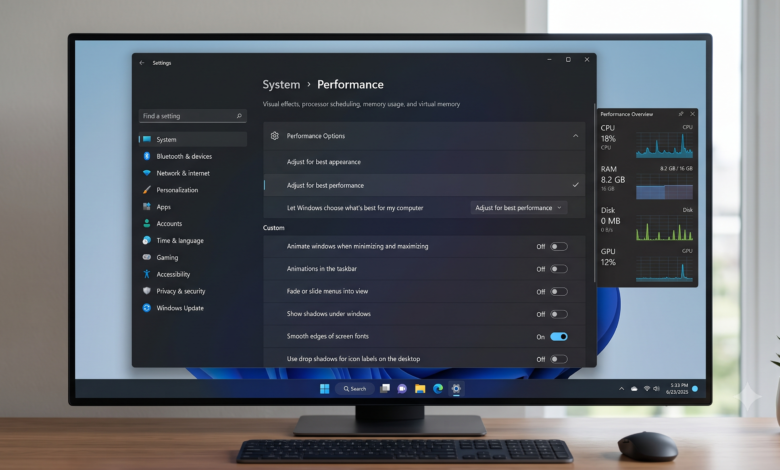
Animations and transparency effects consume GPU and CPU resources.
To improve responsiveness:
- Search for “Adjust the appearance and performance of Windows.”
- Select “Adjust for best performance” or manually disable:
- Window animations
- Fade effects
- Shadows
- Transparency
Keeping font smoothing enabled maintains readable text while reducing unnecessary visual overhead.
Keep Windows Updated
Performance improvements are frequently included in Windows updates.
Installing the latest updates can provide:
- Better CPU scheduling
- Improved memory management
- Graphics driver compatibility
- Storage optimizations
- Security enhancements
Checking for updates regularly also reduces compatibility issues with modern applications.
Free Up Storage Space
A nearly full SSD or hard drive can noticeably reduce performance.
Use Storage Sense to remove:
- Temporary files
- Windows Update cleanup
- Recycle Bin contents
- Downloaded temporary installation files
Maintaining at least 20% free storage helps SSDs perform efficiently.
Optimize SSD Performance
If your PC uses an SSD:
- Ensure TRIM is enabled.
- Avoid manual defragmentation.
- Enable automatic optimization.
- Keep firmware updated.
- Maintain adequate free space.
Windows 11 Performance Settings automatically performs optimization for SSDs, making manual intervention unnecessary in most situations.
Reduce Background Processes
Many applications continue running after they are closed.
Review background permissions for apps you rarely use.
Reducing unnecessary background activity lowers RAM usage and improves battery efficiency.
Task Manager provides a useful overview of current CPU, memory, disk, and GPU consumption.
Manage Memory Usage
Windows automatically manages virtual memory, but users should monitor overall RAM usage.
If memory usage consistently exceeds 90%, consider:
- Closing unused browser tabs
- Reducing startup applications
- Removing unnecessary software
- Upgrading RAM if your workload requires it
Heavy multitasking benefits significantly from increased physical memory.
Improve Gaming Performance
Gamers can optimize Windows 11 performance settings by enabling:
- Game Mode
- Hardware-Accelerated GPU Scheduling (supported hardware)
- Variable Refresh Rate
- Latest graphics drivers
- DirectStorage (supported systems)
Also disable unnecessary overlays from launchers or communication software when gaming.
Update Device Drivers
Outdated drivers can reduce overall performance.
Regularly update:
- Graphics drivers
- Chipset drivers
- Network drivers
- Audio drivers
- Storage controller drivers
Installing drivers directly from the hardware manufacturer often provides newer optimizations than generic versions.
Disable Unnecessary Background Services Carefully
Windows includes many services that support optional features.
Only disable services when you fully understand their purpose.
Disabling essential services may create stability problems, so research each service before making changes.
Improve Browser Performance
Web browsers often consume substantial system resources.
Helpful practices include:
- Removing unused extensions
- Limiting open tabs
- Clearing cached data
- Updating the browser
- Enabling hardware acceleration if supported
Browser optimization often delivers noticeable improvements for everyday users.
Maintain System Security Without Reducing Speed
A secure system is generally a stable system.
Recommended practices include:
- Keeping Microsoft Defender enabled
- Running periodic malware scans
- Removing unwanted software
- Avoiding unnecessary system optimization utilities
Many “PC cleaner” programs provide minimal benefit while increasing background resource usage.
Monitor Performance Using Built-in Tools
Windows provides several diagnostic tools:
- Task Manager
- Resource Monitor
- Performance Monitor
- Reliability Monitor
These utilities help identify applications responsible for excessive CPU, RAM, disk, or GPU usage.
Monitoring performance over time is more effective than making multiple changes simultaneously.
Common Windows 11 Performance Mistakes
Avoid these common errors:
- Installing multiple antivirus programs
- Disabling critical Windows services
- Downloading registry cleaner software
- Running outdated drivers
- Ignoring Windows updates
- Filling storage close to capacity
- Installing unnecessary startup utilities
Simple maintenance usually provides better long-term results than aggressive system tweaks.
Frequently Asked Questions
Does Windows 11 use more RAM than Windows 10?
Yes. Windows 11 generally uses more memory because of additional security features, improved multitasking capabilities, and a more modern graphical interface.
Is Game Mode worth enabling?
Yes. For supported systems, Game Mode prioritizes gaming workloads and limits unnecessary background activity.
Should I disable visual effects?
If your hardware is older or entry-level, reducing animations can noticeably improve responsiveness.
Can Windows 11 performance settings increase FPS?
They can improve system responsiveness and reduce background resource usage, which may provide smoother gameplay in CPU-limited situations.
How often should I optimize Windows 11?
Review startup applications, storage usage, updates, and installed software every few months to maintain consistent performance.
Final Thoughts
Optimizing Windows 11 performance settings does not require risky modifications or expensive software. Regular maintenance, sensible startup management, updated drivers, sufficient free storage, and appropriate power settings together create a faster and more responsive computing experience.
Users who periodically review their system configuration and remove unnecessary background activity generally experience improved productivity, smoother multitasking, better gaming performance, and greater long-term system stability.